In 2025, Discord remains one of the most popular online community platforms. Whether you are a content creator, a brand, or a hobby group, setting up a professional and feature-rich Discord server can help you better manage members, preserve content, and boost community engagement. This guide will walk you through creating a Discord server from scratch and introduce key settings and useful bots.
Creating a Server
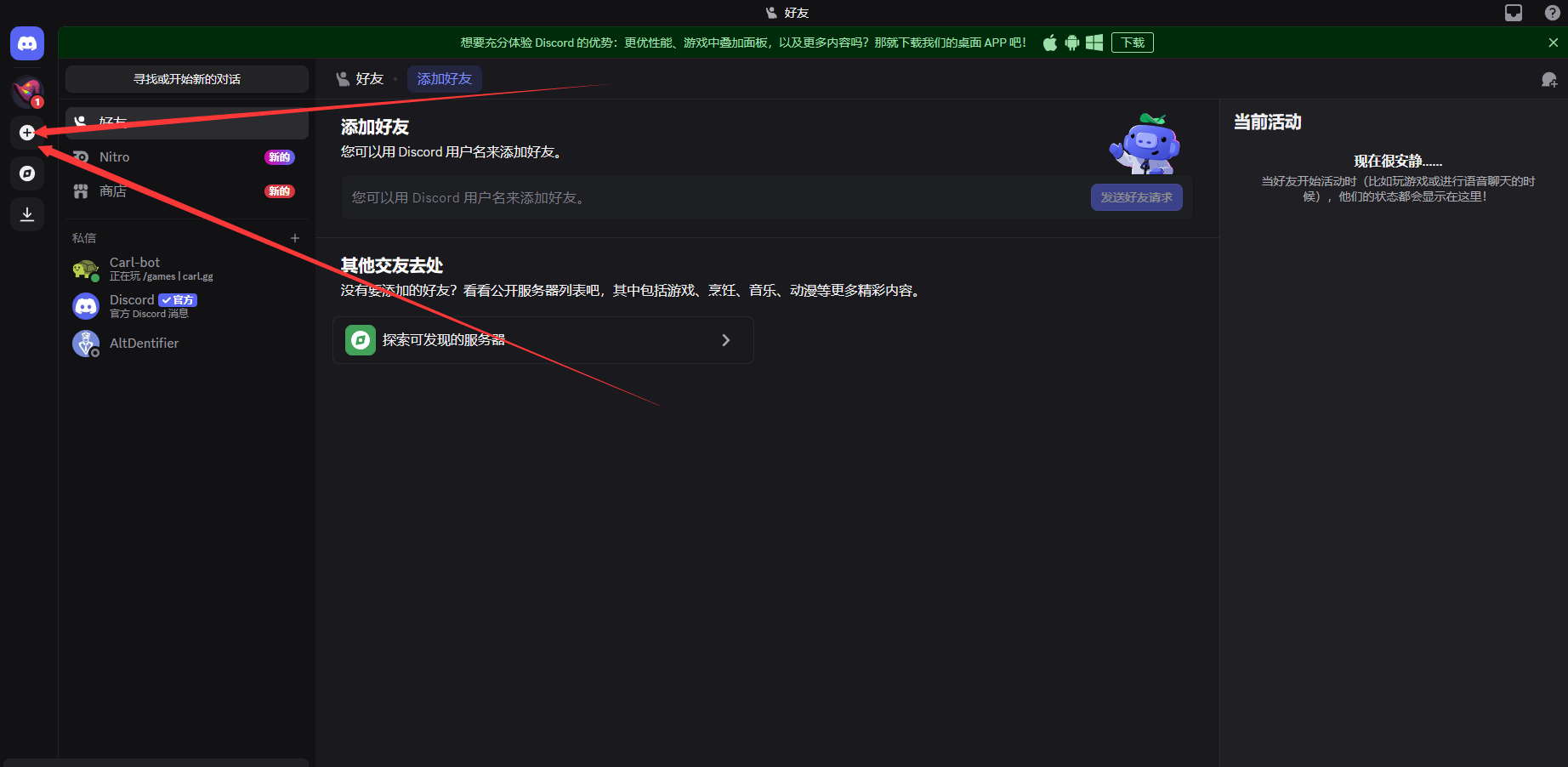
- Open the left-hand menu in Discord and click the “+” button.
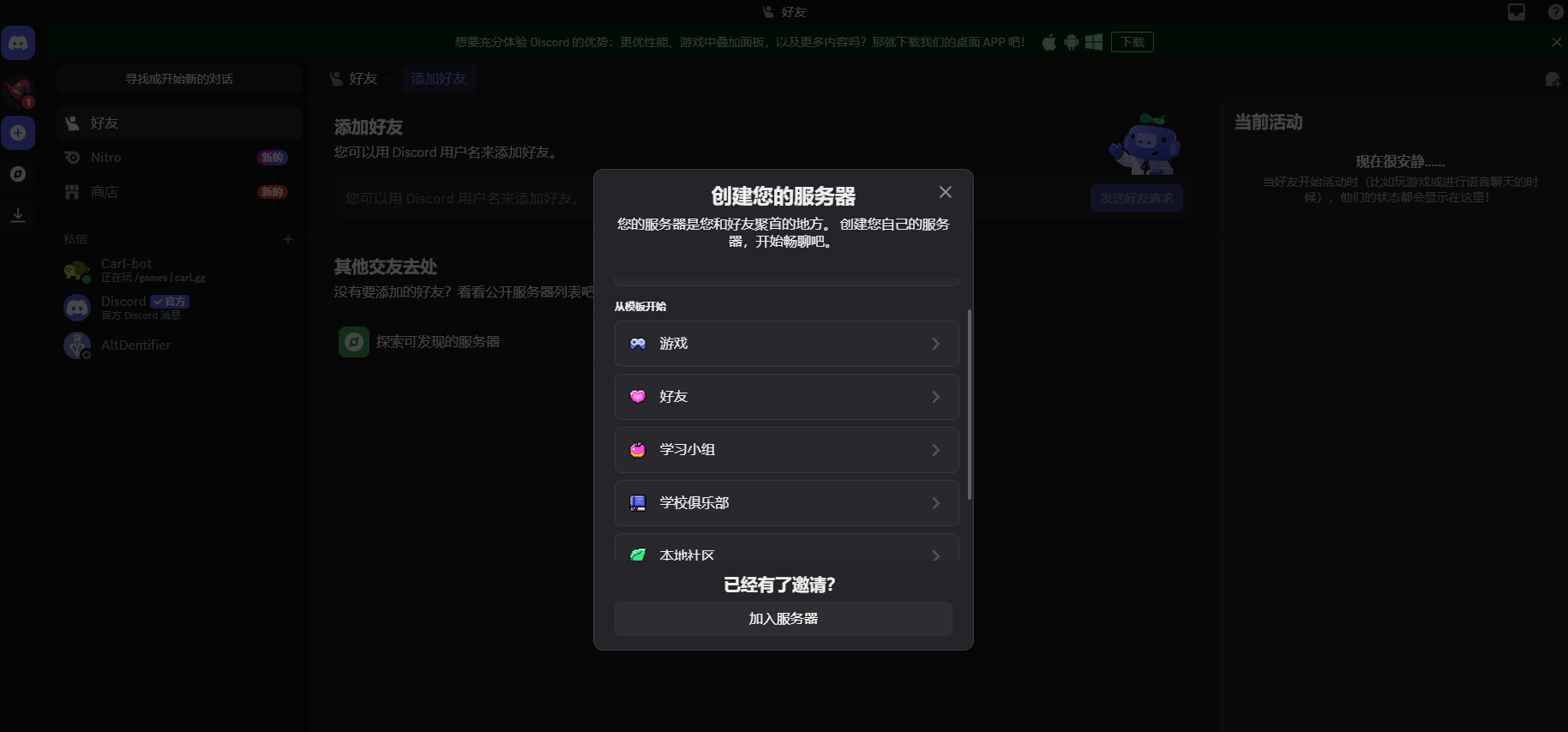
- Choose “Create Server.” You can start from a template or fully customize it.
- Set your server name and icon to enter your brand-new server.
A Discord server is divided into three main areas:
- Left: Channel and category layout
- Center: Chat content
- Right: Member list
Channel and Category Design
A well-structured layout is the foundation of a community. Common categories include:
- Welcome: Welcome, rules, and announcement channels
- Content: For posting personal works, videos, livestreams, or external links (set as read-only)
- Community: General discussion (chat, games, art, food, etc.)
- Voice: Voice and video channels
- Admin: Private space for admins and moderators
To set this up: right-click in the left sidebar → Create Category → add channels within it.
Roles and Permission Management
Roles are the core of Discord’s permission system. Common roles include:
- Owner: Full control of the server
- Admin: Almost full permissions (only for trusted individuals)
- Moderator: Can manage messages, kick/ban members
- Bot: Management permissions for smooth bot operation
- Member: Basic role for all users
Permission tips:
- Disable
@everyone mentions for regular members - Restrict emoji creation, polls, and channel creation
- Moderators only need content moderation rights, not structural control
- Make admin/private channels visible only to specific roles
Community Features and Security Settings
Enable Community Server features for more tools:
- Onboarding: Helps new members integrate quickly
- Server Insights: View activity and growth analytics
- Discovery: Make your community discoverable
Recommended system settings: email verification, media auto-scan, and disabling risky permissions.
Adding Bots
Bots enhance server functionality. Here are two suggestions:
1.It Translator
- Real-time multilingual translation (30+ free languages, 109 in premium)
- Auto-translation in channels or DMs
- Web dashboard, easy to configure
2.Sapphire
- Free, full-featured: welcome messages, auto-role assignment, automation tools
- Custom welcome images and dynamic info
- Anti-spam rules (e.g., 3+ messages in 5 seconds auto-deleted and logged)
Example use cases:
- Welcome channel: read-only with auto messages/images
- Auto role assignment: newcomers instantly get “Member”
- Anti-spam detection: deletes spam and reports to log channel
- Private channels: restricted to admins/mods only
Discord + MasLogin: A Safer Multi-Account Environment
For creators, brands, and community managers, Discord often requires multiple accounts to manage different communities, campaigns, or projects. However, logging into multiple accounts on the same device risks detection and bans.
This is where MasLogin fingerprint browser becomes essential:
- Multi-account isolation: Each account runs in a separate virtual browser environment, avoiding linkages.
- Anti-detection: Built-in fingerprint simulation reduces ban risk.
- Team collaboration: Teams can securely manage multiple accounts in shared environments.
- Proxy integration: Combined with proxies, this creates a natural, global login environment.
Use Case Examples
1.Affiliate Marketing Teams
- Manage multiple accounts to share offers, engage prospects, or join niche groups.
- MasLogin provides isolated environments and bulk account management for efficiency.
2.NFT / Web3 Communities
- Projects need official servers for announcements, AMAs, and fan engagement.
- MasLogin enables safe multi-account management and global participation with proxies.
3.Cross-border E-commerce Sellers
- Join learning groups, discussion channels, and manage ads via multiple accounts.
- Environment isolation boosts account survival for long-term operations.
4.Gaming Guilds & Community Managers
- Manage different accounts for moderation, event planning, or support.
- MasLogin ensures role-based separation and improves teamwork efficiency.
FAQ
Q1: How do I set up a Discord server from scratch in 2025?
A1: Click “+” → Create Server → configure channels, roles, and add bots. Plan layout based on your purpose (gaming, NFT, study group, etc.).
Q2: Why does my Discord account get restricted or banned?
A2: Discord detects multiple accounts on the same device/network. Similar environments trigger risk controls. MasLogin prevents this by isolating accounts.
Q3: What are the benefits of using MasLogin with Discord?
A3: MasLogin creates unique browser fingerprints for each account. Combined with proxies, it enables safe logins for teams and Web3/global projects.
Q4: How many Discord accounts can I manage with MasLogin?
A4: There’s no strict limit. Many users manage dozens or even hundreds of accounts stably with proxies and hardware resources.
Q5: What scenarios benefit from Discord + MasLogin?
A5: Affiliate marketing, Web3 projects, e-commerce sellers, gaming guilds, and education communities — all needing large-scale, global, multi-account management.
Q6: Do I really need a fingerprint browser for multi-account management?
A6: Not mandatory, but it greatly reduces bans and increases account lifespan. MasLogin is more advanced than traditional multi-login tools, simulating real user environments.




 (1) (1).png)